
A marketing team fixes the alternative text on a product image. A month later, a colleague adds the same image to a new page, but the description disappears. A template update makes a button difficult to read. An editor pastes a table that loses its headings. Each problem looks small; repeated across a site, they can create a much larger maintenance job.
On November 10, 2026, W3C Web Accessibility Initiative Director Shawn Lawton Henry published a discussion of how authoring tools can support accessibility at scale. The idea is relevant to businesses that publish through content management systems, no-code builders, marketing tools, and other editors: the tools people use every day can make accessible choices easier—or make mistakes easy to repeat.
This is not an announcement that every CMS became noncompliant, and it does not replace an audit of your published website. It is a useful prompt to examine how content is created, reviewed, and changed after an audit.
What counts as an authoring tool?
Authoring tools are software and services people use to create web content. Examples include a CMS editor, website builder, learning platform, social media interface, or software that exports documents to web content. Your designers, marketers, developers, and external agencies may each use a different tool.
W3C’s Authoring Tool Accessibility Guidelines overview describes two related objectives. ATAG Part A concerns accessibility of the authoring tool itself, so people with disabilities can create content. Part B concerns how the tool supports authors in creating accessible content. ATAG 2.0 is an existing W3C Recommendation; W3C reported a proposed new working-group charter in November 2026. A proposal is not a new finalized standard.
One template can affect many pages

A reusable component is powerful because one improvement can help every page that uses it. The reverse is also true: an inaccessible navigation component, insufficient color contrast in a theme, or a poorly labeled promotional popup can recur throughout a site.
Imagine a business fixes an inaccessible “Book now” button on one campaign page. If the default block in its editor still produces the same problem, a later campaign can reintroduce it. The stronger fix may involve the shared component and a review of existing pages—not just editing that one campaign.
Document which templates and components support important journeys such as bookings, purchases, and contact requests. Prioritize shared issues by user impact and verify fixes in the published experience. See our guide to what an accessibility audit includes.
Make image descriptions part of publishing
When an editor uploads an informative image, the tool can prompt them for alternative text and explain what makes it useful. W3C’s November discussion also suggests saving descriptions with an image and asking authors to reconsider them when the image is reused in a different context.
Context matters. A photograph used to show a product’s color may need a different description when it illustrates a store location. Decorative images generally need an appropriate empty text alternative, depending on their purpose and implementation. Automatically suggested descriptions can save time, but an author should check them for accuracy and purpose. W3C’s images tutorial explains the distinctions.
Check the choices an editor can make
Look beyond whether an editor has an accessibility checker. Can content creators use heading levels rather than visually styling ordinary text? Can they add meaningful link text and table headers? Does the tool make captions available for video? Are color choices readable, including focus and interactive states? If a tool flags a problem, does it explain how to resolve it?
Test the output as published. A toolbar may offer a heading style while an export or custom component produces unexpected markup. An automated warning may miss the meaning of an image or whether an error message helps a customer finish a form. Our comparison of automated and manual testing explains why both matter.
Can everyone on the team use the editor?
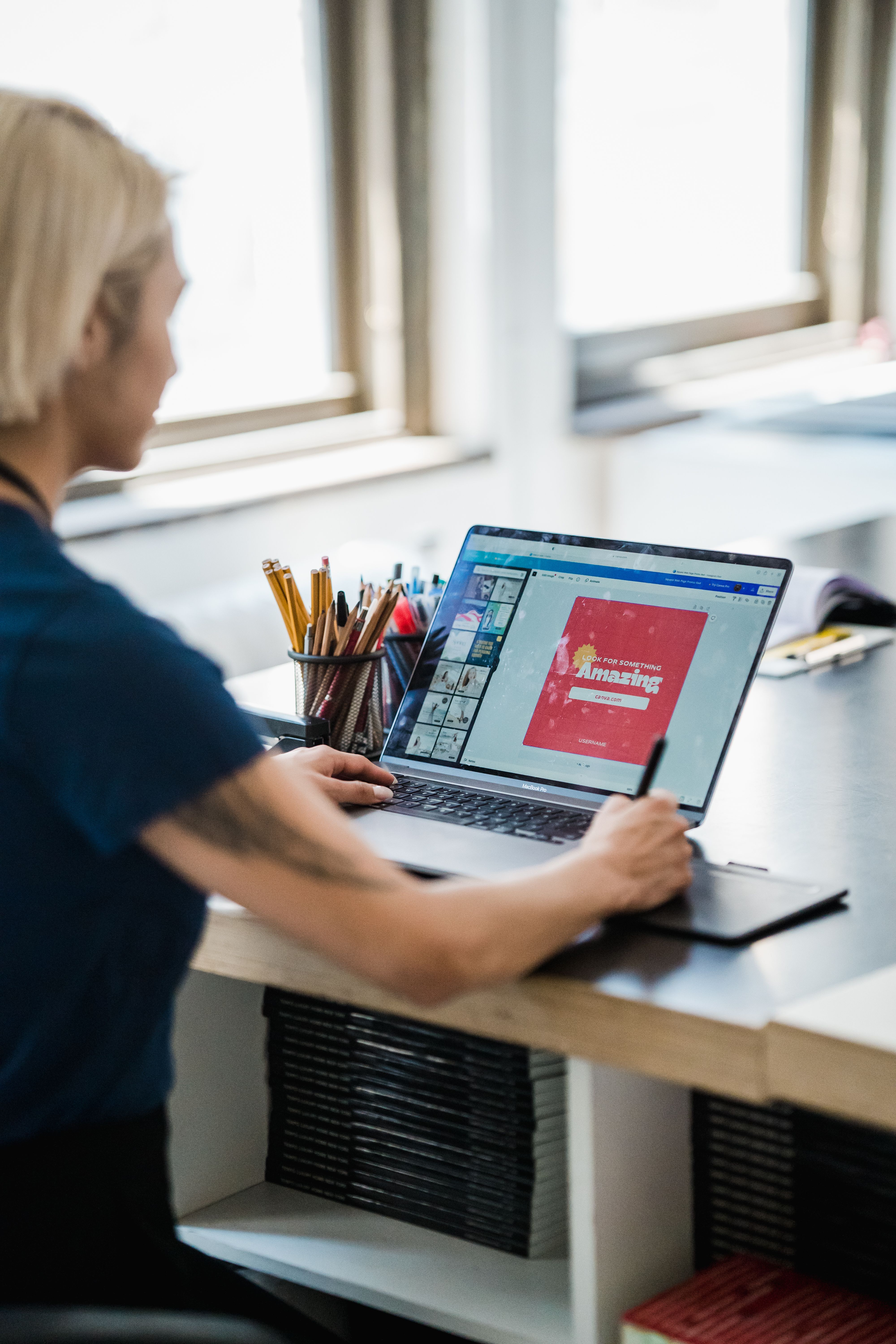
An accessible publishing workflow also depends on the people creating the content. Test whether an author can log in, navigate the editor with a keyboard, understand control names and status messages with a screen reader, insert and edit content, and recover from errors. Include representative authoring tasks and assistive technologies in the evaluation, and involve people with disabilities where possible.
Do not assume that an accessible public page proves the back-office editor is accessible, or that an accessible editor guarantees every published page meets WCAG. They are separate things to evaluate. For relevant testing combinations, read our screen reader testing guide.
Five questions to ask a CMS or website-builder vendor
- Can authors use core editing and publishing functions with a keyboard and assistive technology?
- How does the tool help authors add, review, and update meaningful image descriptions?
- What happens to headings, links, table structure, and captions when content is pasted, reused, or exported?
- Which templates and components have been tested, against what standard, on which versions, and with which tools?
- How are reported barriers assigned, fixed, and verified after updates?
Ask for supporting documentation and demonstrations of the workflows your team actually uses. Vendor statements are helpful starting points; they do not replace testing your configuration, plugins, content, and customer journeys.
Build accessibility into the publishing process
Assign owners for templates, publishing guidance, vendor issues, and retesting. Give authors short, context-specific guidance where decisions happen. Review a representative set of pages and high-impact journeys, fix reusable patterns, and retest after theme changes or new integrations. Track outstanding issues and provide a way for customers and employees to report barriers.
WCAG is a technical standard, and legal obligations depend on the organization, jurisdiction, and facts. The U.S. Department of Justice’s web accessibility guidance is a starting point; consult qualified counsel for legal advice.
Want to know whether your publishing process is reintroducing barriers? Contact ADA Access Group to discuss a scoped assessment of your website and the customer journeys your business depends on.
This article provides general information, not legal advice. No tool or audit guarantees a particular legal outcome.
Featured photo: Mizuno K / Pexels.